ChimeraX Plugin
The ETSAM ChimeraX plugin runs ETSAM from UCSF ChimeraX. You open a tomogram, choose it in the ETSAM panel, click Segment membranes, and the membranes appear as a new surface/volume in ChimeraX. You can then adjust the confidence threshold if needed and save the segmentation volume.
Requirements
Section titled “Requirements”| Minimum | Recommended | |
|---|---|---|
| GPU | NVIDIA GPU with 2 GB VRAM | NVIDIA GPU with 4 GB+ VRAM |
| RAM | 4 GB | 8 GB |
| Operating system | Linux or Windows, with an NVIDIA GPU |
Installation
Section titled “Installation”1. Install the plugin
Section titled “1. Install the plugin”In ChimeraX, open Tools ▸ More Tools…, search for ETSAM and click Install. Or type in the ChimeraX command line:
toolshed install ETSAMRestart ChimeraX after installing or updating the plugin.
2. First start: click Install ETSAM
Section titled “2. First start: click Install ETSAM”ETSAM itself runs in its own environment, separate from ChimeraX. When you open the ETSAM panel, the plugin checks whether ETSAM is installed. If it is missing on a supported computer, the panel shows an Install ETSAM button. Click it to start the ETSAM installer.
Installation downloads about 5 GB and may take 10–15 minutes. Keep ChimeraX open until it finishes; the panel shows progress. The installer puts ETSAM into ~/etsam_env (on Windows, %USERPROFILE%\etsam_env).
Segmenting a Tomogram
Section titled “Segmenting a Tomogram”- Open the panel: Tools ▸ Volume Data ▸ ETSAM Membrane Segmentation.
- Open a tomogram: click Open… in the panel, or use File ▸ Open… (
.mrc,.rec,.map,.mrcs,.stor.ali). It is selected as the Tomogram automatically. If several volumes are open, choose the one to segment. - Optionally, tick Clean up mask or Closely spaced membranes (see Options).
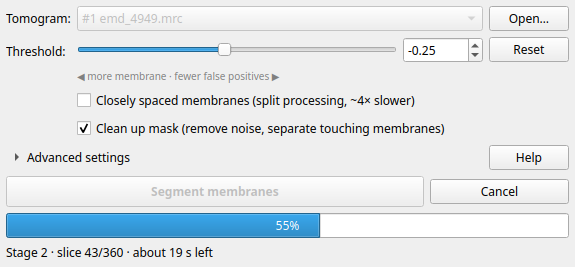
- Click Segment membranes. The progress bar follows ETSAM through Stage 1 and Stage 2 slice by slice, then through clean-up (for example Stage 2 · slice 83/360 · about 25 s left). Click Cancel to stop at any time.
- When finished, a
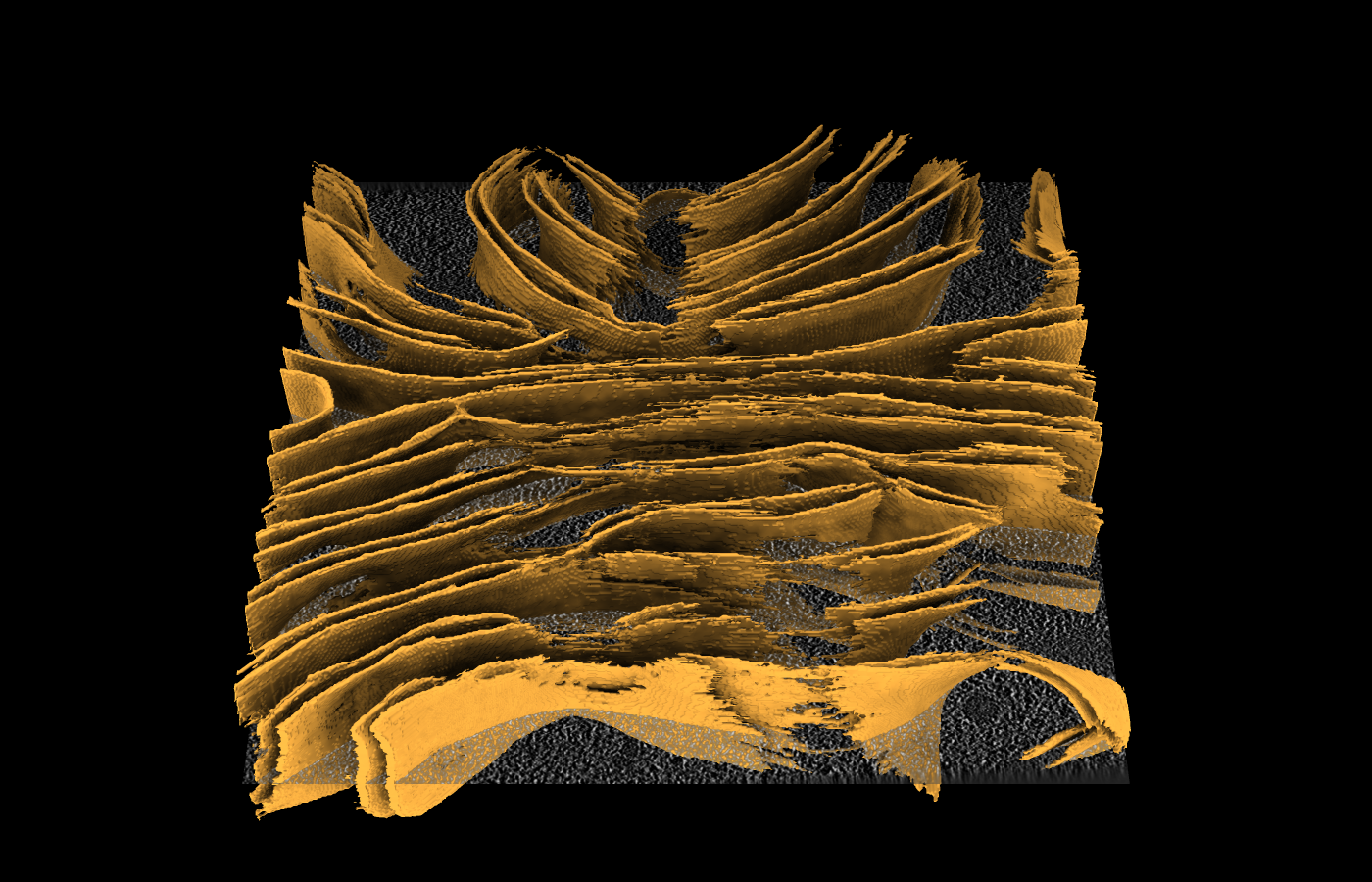
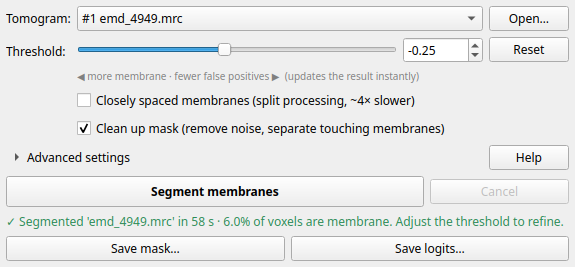
<tomogram> membranesvolume is added: ETSAM’s membrane scores (logits), shown as a gold surface at the threshold. The panel shows the run time and the fraction of voxels classified as membrane. - Refine: move the Threshold slider, or change the Level in ChimeraX’s Volume Viewer panel (or use
volume #2 level -0.5). Both change the same surface level, and each follows the other. The surface updates instantly, and clean-up is re-applied in the background if enabled. Lower values find more (and fainter) membrane; higher values give fewer false positives. Reset returns to the default-0.25. - Save: click Save mask… (the binary mask at the current threshold, i.e. the surface level shown) or Save logits… (raw membrane scores). Files are written as
.mrcwith the tomogram’s voxel size; the suggested names are the same as theetsamcommand’s, for exampleTS_01_etsam_predicted_mask.mrc. ChimeraX’s File ▸ Save orsavecommand saves the result volume itself (the logits, with removed voxels set to -100 if clean-up is on).
Segmenting the same tomogram again replaces the earlier result.
Options
Section titled “Options”The main options are in the panel. The rest are under Advanced settings.
| Option | Command-line equivalent | Description |
|---|---|---|
| Threshold | --logit-threshold | Binarization threshold of the Stage 2 logits (default -0.25): the surface level of the result. Adjustable live after a run. |
| Closely spaced membranes | --split-processing | Segments the four Y/X quadrants separately with a denser prompt grid; separates closely apposed membranes. About 4× slower. |
| Clean up mask | --post-process | Removes thin noise blobs and cuts short bridges between parallel membranes, with the default post-processing settings. Compare with the raw result, because it can remove small real membranes. |
| Normalization | --normalize-method | Try softplus_minmax if membranes are missed with the default. |
| Stage 1 / Stage 2 prompt | --stage1-prompt, --stage2-prompt | Prompting strategies; see Advanced Usage. |
The options are the same as in the napari plugin, and both produce the same results as the etsam command for the same settings.
ChimeraX Commands
Section titled “ChimeraX Commands”The panel’s functions are also available as commands, for example for scripts. The panel itself uses them: Segment membranes runs etsam segment with all the panel’s settings, and Save mask… / Save logits… run etsam save. The commands appear in the Log and the command history, so you can repeat a run or copy it into a script.
etsam segment [#input_volume_id] [threshold value] [split true|false] [cleanup true|false] [normalization min_max_positive_values|softplus_minmax] [stage1Prompt grid_zero|grid|zero] [stage2Prompt zero|grid|grid_zero|etsam_stage1_partial]etsam save [#segment_volume_id] path [type mask|logits]etsam canceletsam segment works on open volumes and adds the result as a new volume, like the panel; nothing is saved automatically. Options that are not given use the panel’s current settings. For example, to segment a file and save the mask from a script:
open ~/data/TS_01.mrcetsam segment #1 cleanup truevolume #2 level -0.5 # optional: change the thresholdetsam save #2 ~/data/TS_01_mask.mrc # the mask at the current thresholdetsam save #2 ~/data/TS_01_logits.mrc type logitsetsam save does the same as Save mask… and Save logits…; it takes the result volume or the segmented tomogram.
In ChimeraX’s no-GUI mode (ChimeraX --nogui --cmd "…"), etsam segment waits until the segmentation has finished, so the next command can use the result.
Troubleshooting
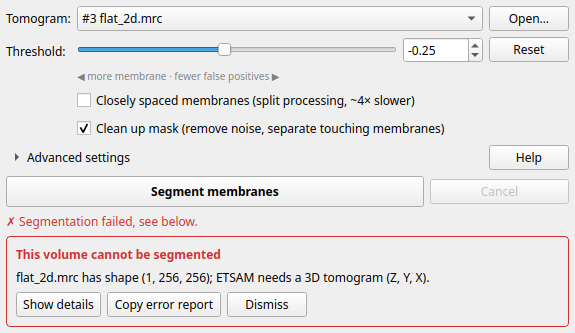
Section titled “Troubleshooting”When something goes wrong, the panel shows a red box with the problem and a suggested fix. Show details displays the full error, and Copy error report copies it with your system information. Errors are also written to the Log. Include the details when you report a problem on GitHub.
| Message | What to do |
|---|---|
| No tomogram selected | Open a tomogram first (Open… or File ▸ Open). |
| This volume cannot be segmented | ETSAM needs a single 3D volume (Z, Y, X), not a 2D image. |
| stopped by the operating system / ran out of memory | Close other programs, or bin the tomogram. |
| Could not save … | The folder is read-only, or the disk is full. Choose another folder. |
| The GPU is busy | Another program keeps ETSAM from using the GPU. Restart ChimeraX; if the message persists, close other programs that use the GPU (see the note below). |
| Installing ETSAM failed: … requires an NVIDIA GPU | The installer supports NVIDIA GPUs only. Install ETSAM yourself as described in Installation. |
| Installing ETSAM failed: … the folder already exists | An earlier installation was interrupted. Delete the etsam_env folder in your home folder and reopen the panel. |
| ETSAM is not installed | This computer is not supported by the installer. Install ETSAM yourself (see above), or set ETSAM_PYTHON. |
| ETSAM is not installed in the environment … | That environment lacks ETSAM. Run step 3 of the conda installation (pip install --no-deps -e . in the ETSAM folder). |
| ETSAM … is older than this plugin | The plugin needs an ETSAM at least as new as itself. Click Update ETSAM: it installs the latest ETSAM release again (about 3 GB download, 10–15 minutes). An ETSAM you installed from source must be updated the same way (git pull, then pip install --no-deps -e .). |
| The Log says no GPU available although the computer has an NVIDIA GPU | Update the GPU driver, and check that PyTorch in the etsam environment can use the GPU (see Verify the Installation). |
Uninstalling
Section titled “Uninstalling”Run toolshed uninstall ETSAM to remove the plugin integration. To remove ETSAM completely, refer uninstall section in Installation guide.